Certificate templates with a drag-and-drop designer
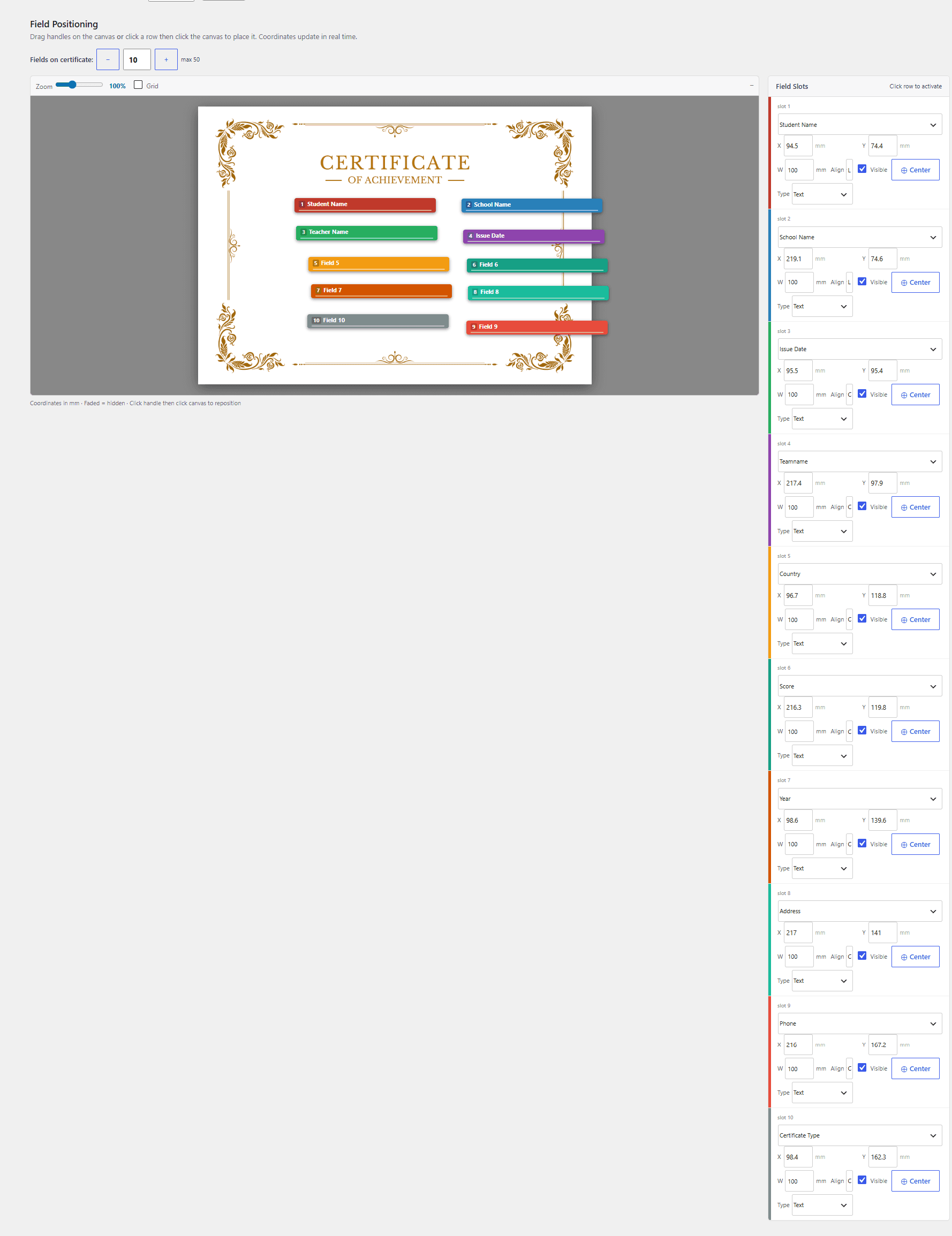
A certificate template in Certificate Generator is a background image plus positioned text fields. You design the background anywhere (Canva works well), upload it, and drag fields such as Name, Certificate Type, School and Date onto the canvas. Each recipient's certificate type picks the matching template automatically.
Position every field visually
The field position editor shows a live canvas with zoom and grid snapping. Place the standard fields plus up to 15 custom fields per certificate type, and set font, size and colour per field. Image-type fields support signatures and seals.
Preview before you issue
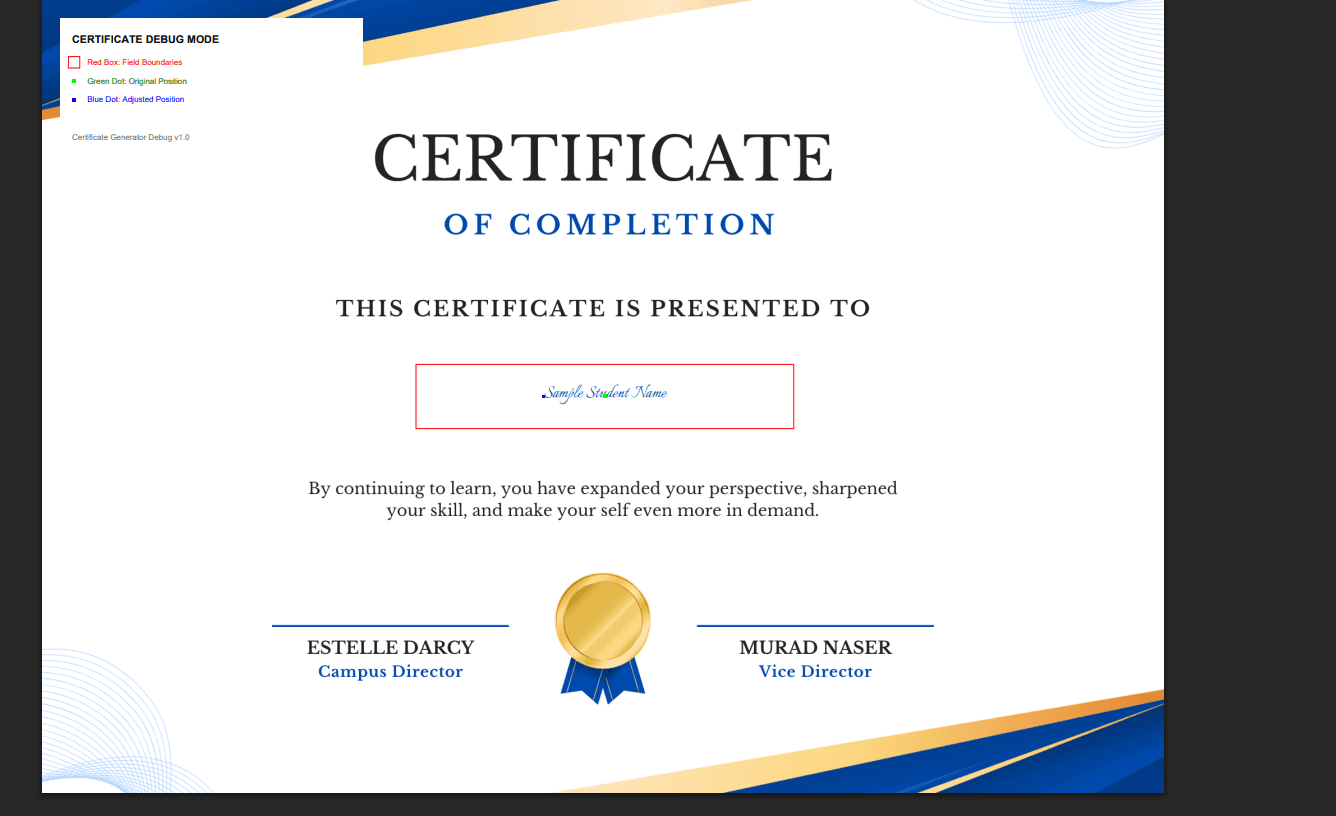
Click Preview to get a sample PDF with field boundaries and position markers drawn on it, so you can line everything up before any certificate goes out.
Templates, types and fonts
Each recipient's certificate type is matched against the template name; if there's no match, the default template is used. Editing a template only affects future PDFs — certificates already generated are not changed.
Business plan customers can upload their own .ttf fonts and select them for any field.
Create a template
- Go to Certificate Generator → Templates → Add New.
- Upload your background image (PNG or JPG, A4 landscape recommended).
- Drag Name, Certificate Type, School and Date onto the canvas.
- Set font, size and colour for each field.
- Click Preview to check alignment, then Save Template.
Documentation
Related features
Evaluating options? See the requirements checklist or how Certificate Generator compares with other certificate plugins.